Ricoh GR IV: Setup Tips For Street Photography
How to get the most out of your Ricoh GR IV on the street…
To see more demonstrations & visuals, check out the Youtube video here.
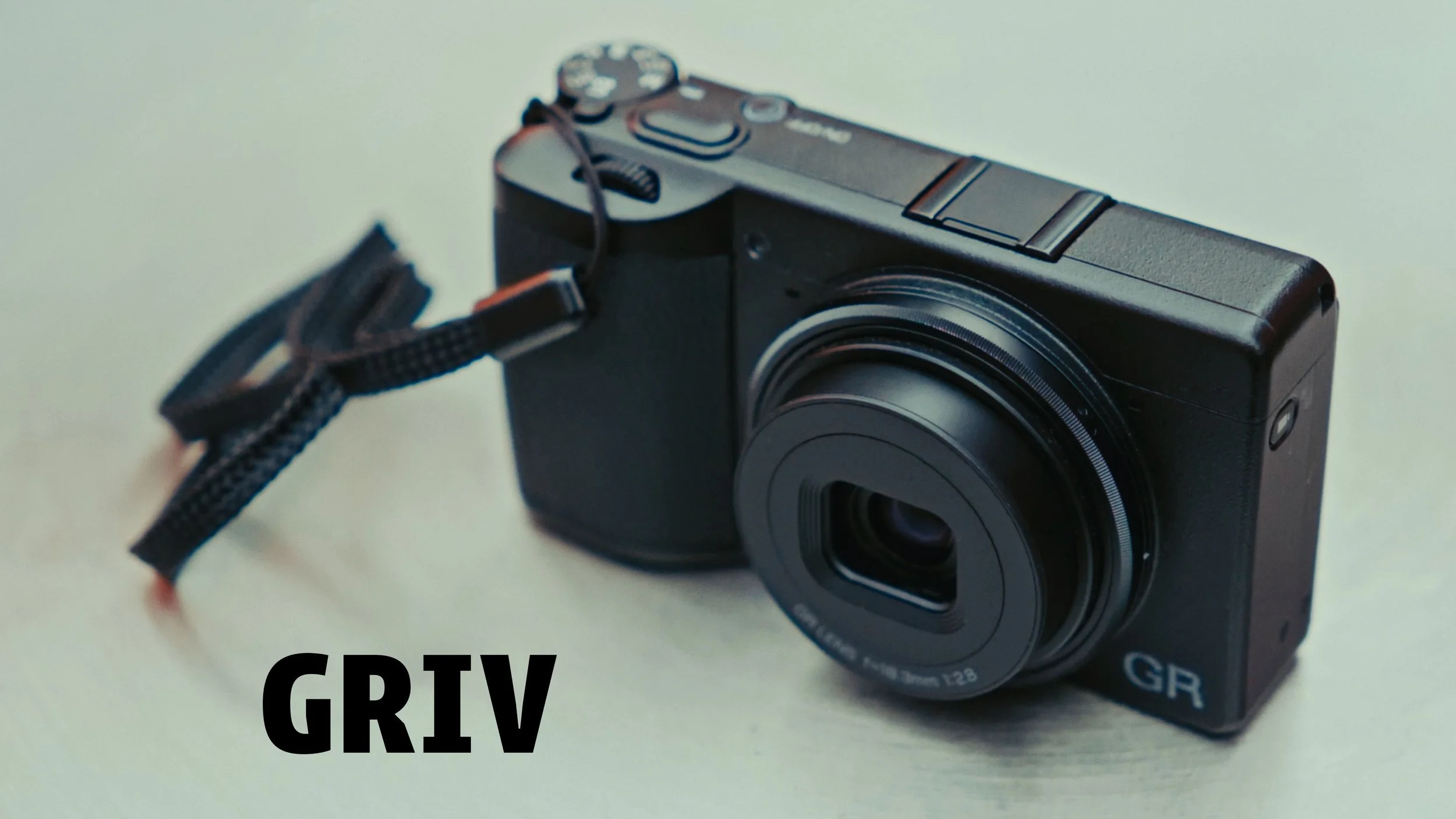
This post contains affiliate links. If you make a purchase through these links, I may earn a small commission at no additional cost to you.A little background… my goals with the Ricoh GR IV.
After preordering the Ricoh GR IV from B&H, I’ve been shooting with it consistently to see how it fits into my street photography workflow. Over the past month, I’ve used it enough to feel like I’ve dialed in this camera in a way that really works for me, allowing it to feel more like an extension of my eye.
That “extension of your eye” feeling is always the first challenge I try to solve when using a new camera, especially for street photography. The worst thing you can let happen is to be held back by your gear because you’re confused by it, or it isn’t set up in a way that fits comfortably into your workflow.
In this post, I’ll walk through how I personally set up and use the Ricoh GR IV for street photography, including:
Shooting modes I rely on
Button and dial customizations
Autofocus vs snap focus settings
Display and usability tweaks
& a few other misc. changes
Quick disclaimer: I’m not a GR-only shooter or a Ricoh expert, so I may skip features that other GR users love - this is simply what’s been working for me and what’s helped me feel confident taking this camera out on the street. Take my ideas with a grain of salt!
Shooting Modes I Use on the Ricoh GR IV
Aperture Priority (99% of the time)
Ninety-nine percent of the time, I shoot the Ricoh GR IV set to aperture priority.
I bought this camera specifically to use it as a point-and-shoot, everyday carry camera, and I want it to be close to mindless to use. I don’t want the shooting process to feel complicated, rather, I want to be fast, and able to capture moments quickly while still getting a solid exposure.
For this, I’d reccomend either aperture priority or shutter priority - shooting in manual will require a little more thought and attention to your exposure triangle settings…
Aperture priority has been most successful for me - especially since I typically shoot 99% of street photos at the same aperture (f8).
Once my aperture is set, I let the camera handle my shutter & ISO based on the scenes lighting. I can focus entirely on composition and timing instead of technical settings.
And if I want to change how the camera is exposing - for example, to shoot a silhouette - I just tap the exposure compensation (+ or -) button on the side to achieve that exposure look.
This mode keeps the Ricoh GR IV simple, which again, honors the goal I had in mind when I got this camera, of making it a simple point & shoot for street photography.
Manual Mode (Mostly at Night)
While aperture priority works great most of the time, there are situations where it doesn’t give me the results I want - particularly, at night, or in general, any lowlight scenes.
Night scenes tend to be very contrasty, with deep shadows and extremely bright highlights. When shooting in these conditions, you’re constantly choosing whether to preserve highlights or lift shadows, and I’ve found that auto modes don’t always expose for the part of the scene I care about most.
This is due to the metering modes in the camera - there are plenty of them, and you should play around with them for sure, but I’ve found in these low light scenarios I just prefer to takeover and have a little more control of the camera’s settings.
I’ve also run into situations using aperture priority where the camera chooses a shutter speed that’s a bit too slow, causing me to miss moments or introduce motion blur I didn’t want.
Because of that, my rule of thumb is simple: anytime it’s low light, I just switch to manual mode.
Manual mode lets me fully control how the scene looks, without the camera making exposure decisions for me. Although this doesn’t align with keeping the camera a point & shoot, because I have to make decisions… in these cases, I’m fine with that.
Manual Mode - Dial Changes
One important change I made was swapping the dial functions in manual mode:
Front dial: Shutter speed
Rear dial: Aperture
Out of the box, these are typically reversed (shutter on rear, aperture on front). I made this swap because when I’m shooting manual, I change shutter speed far more often than aperture, and the front dial is much more ergonomic for me to use while shooting (I have smaller hands…).
To do this:
Go to Customize Controls
Select Exposure Setting
Choose Manual Mode
Assign Tv (shutter speed) to the front dial
This small change made manual mode feel significantly more comfortable and intuitive.
Autofocus & Snap Focus - When to use which?
Why I Use Snap Focus So Often
After spending time with the camera, I’ve become a big fan of Snap Focus, especially for street photography. It’s easy to see why this feature is one of the biggest draws of the Ricoh GR system.
In short, Snap Focus lets you pre-select a focus distance. When you press the shutter, the camera doesn’t hunt for focus, rather, it instantly focuses to that distance and takes the photo. There’s no hesitation and no delay.
For street photography, that response time can be really beneficial if a moment is fleeting.
I typically set my snap focus distance to 2m or 2.5m, which I’ve found works well for most street scenes, assuming I’m stopped down to f8 (which I usually am in mid-day).
To enable snap focus:
Go to Focus Settings
Select Snap
Choose a Snap Focus Distance
Assigning Snap Focus Distance to the FN Button
One frustration I had with snap focus is how annoying it is to change distances through the menu. It takes forever, and takes you away from taking photos.
To make changes to my Snap Focus Distance faster, I assigned Snap Focus Distance to the FN button.
To do this:
Go to Customize Controls
Select FN Button Setting
Assign Snap Focus Distance
Now I can quickly switch focus distances depending on the scene. For example, lets say I’m moving from a crowded sidewalk to a wider street scene. Without diving into menus, now I just tap FN, quickly cycle down to “infinity” for a focus distance, and I’m done.
This single customization made snap focus far more usable for me, and once I set it up, Snap Focus become a major draw to this system for me.
Funny, since doing this, I learned you can press & hold the little “flower” macro button to pull this menu up… but even still, I’ve left the FN button assigned to this menu, as I just prefer pulling up the options this way.
When I Switch Back to Autofocus
Now as much as I’m glazing Snap Focus, I don’t use it all the time…
At night, or basically anytime I can’t stop down my aperture, I usually switch back to autofocus.
I tend to shoot wide open at f/2.8 in low light, and when depth of field gets shallow, snap focus becomes riskier. If my subject isn’t exactly within the snap distance, I end up with softer focus on the subject than I want.
And even with the FN button bringing up my Snap Focus distances quicker… I still might not have time to swap distances to get my subject in focus. Maybe they move, or change distances. Not to mention, even if it was fast to switch, I don’t have the best judgement when guessing the distance reliably…
So in cases where my depth of field is shallow due to an aperture like f/2.8, autofocus simply lands focus more reliably.
I personally use single-point continuous autofocus, mainly because that’s what I’m used to on my other cameras - just something I’m used to at this point.
That said, the GR IV offers several autofocus modes, and it’s worth experimenting to see which works best for your style.
Display Settings & Other Changes
The first day I had the camera, I made several changes to the display and controls that immediately improved my experience.
Grid Lines On
I enabled grid lines on the rear display to show a rule-of-thirds overlay. I use this on every camera I own. It helps me frame scenes more consistently and can be a useful fallback when composing quickly. It might be a little corny, but having the rule of thirds available to you to hold your hand can sometimes be comforting…
To enable grid lines:
Go to Display Customization
Select Shooting Info Display
Toggle Grid Guides on
Touch Screen
I turned the touch screen off almost immediately. I tend to accidentally tap touch screens while shooting, which leads to missed shots or misfocused frames. I cannot stand touch screens on cameras.
That said, there is one touch feature worth trying that I did mess around with: tap to shoot.
You can configure the camera so tapping the screen both focuses and fires the shutter. You can even pair this with snap focus, allowing the camera to take an instant snap-focus shot when you tap.
This can make the camera feel more discreet and phone-like, which may be appealing for street photography.
To try it:
Enable LCD Touch Operation
Go to Touch AF
Select AF Point + Focus + Shoot
For snap focus, enable Full Press Snap
Still, I personally don’t use this feature, so I disabled it, along with the touch screen, but I thought it was cool enough to atleast mention here & encourage you to try.
Turn Off Instant Review
I turned off instant image review entirely. When it was enabled, I found myself missing shots because the image review would pop up after every frame. Turning this off made the camera feel much faster and less distracting. I also do this on all my cameras.
Turning Off the Rear Screen
When my battery is running low or I want to be more discreet, I’ll tap the display button to turn the rear screen off entirely. It may help with battery life, and it also might help in keeping your camera setup discreet for street photography.
Other Small Changes
A few final tweaks I made:
Turned off the power lamp (green light on top of the camera). Pointless, didn’t like the look of it.
Disabled the video button, since I don’t shoot video on this camera and kept hitting it accidentally.
Having the video button currently functionless means I have an option to add another function there later. Maybe I will! Do you have one in mind?
Closing
This blog pretty much covers the bases on how I’ve been using the Ricoh GR IV for street photography. The goal for me is always the same: remove friction, simplify the process, and make the camera disappear so I can focus on the moment in front of me. In addition, with this camera, I just wanted it to be a fun, easy to use, thoughtless point & shoot. And I think this setup brings it closer to that goal.
Help support my work by exploring my products below!
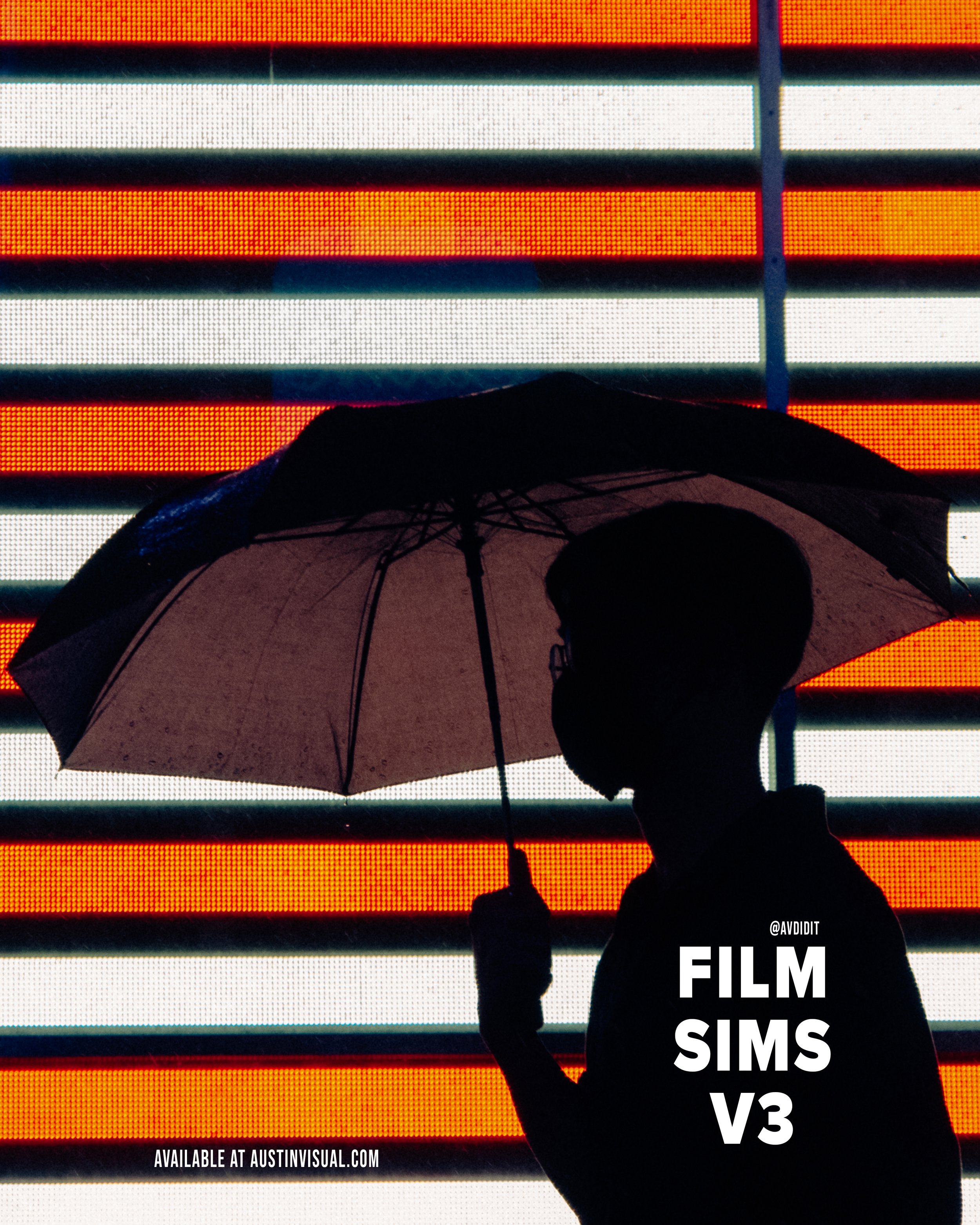
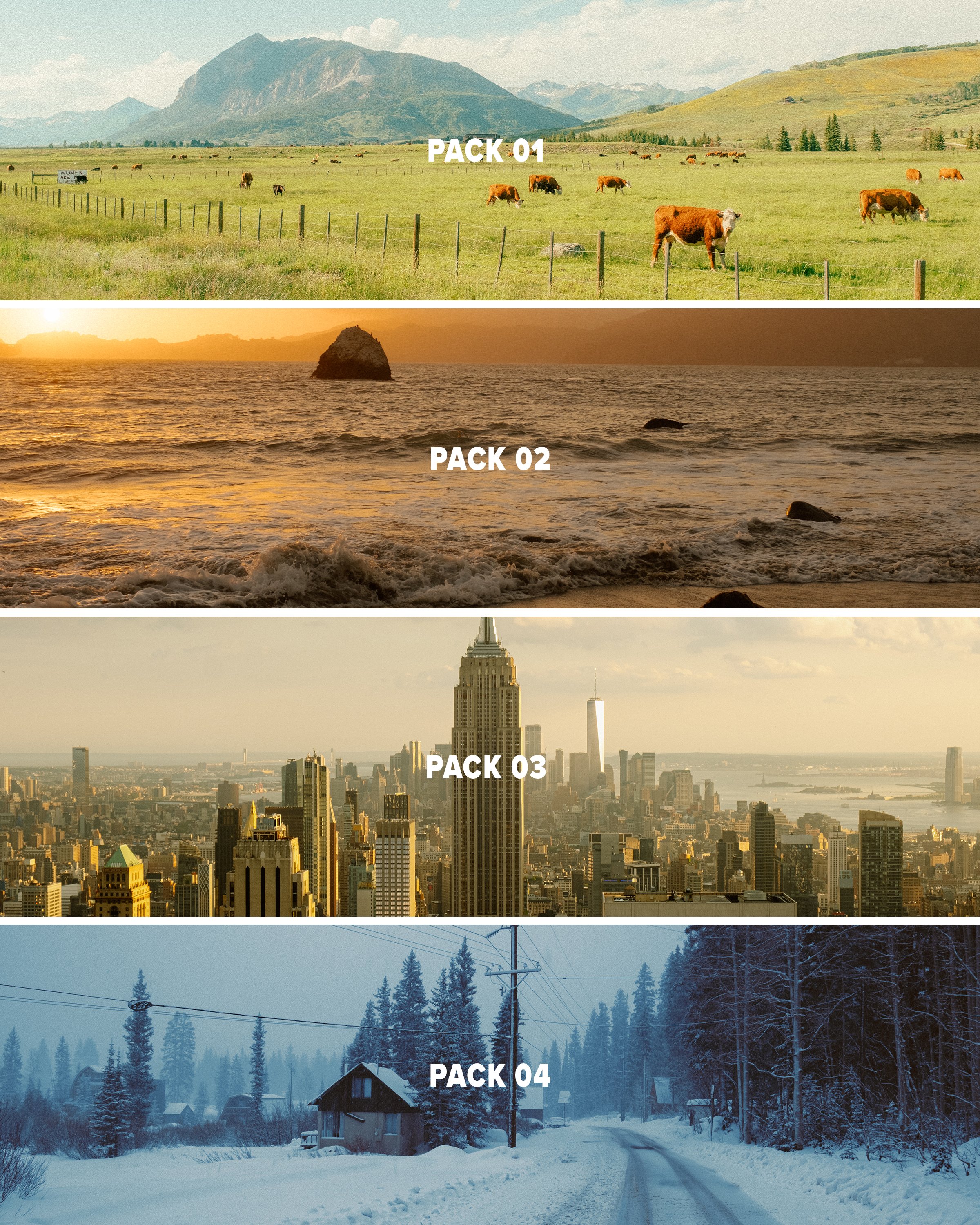
This pack provides 3 Lightroom presets inspired by film looks that should give you a solid base to work with in just a few clicks using Lightroom. This pack is the 4th and final installment of my ongoing “AV FILM SIMS” preset suite. The full suite (see bundle) includes this pack and the 3 others, giving you the base looks I use on almost all of my edits as scene on Instagram/Youtube, etc.
Each look is outlined below:
Winter - a cool blue preset created using heavy Color Tone Curve edits, inspired by winters spent in the Utah desert, but applicable to most moody, rainy, or winter scenes.
Wyoming - a clean, filmic day-light focused preset inspired by my travels to the Grand Tetons of Wyoming. Great for road trip scenes, landscapes, and mid-day photo walks.
Moab - inspired by kodak film-stocks, this preset is meant to create a soft, colorful and film-like look in one click. Inspired by some of my earliest visits to Moab, and specifically Arches, but I’ve been using it on a lot of NYC work as well!
Note: these are for DESKTOP. I use them on Lightroom Classic. These are NOT mobile presets. They do work in Lightroom Cloud via importing, and if applied to a DNG, they CAN work on Mobile, but they are not optimized for this purpose.
How to download & install:
Once you checkout from my site, you will be given access to the digital download.
Download & unzip the “zip” file.
Open LR -> File -> Import Develop Profiles and Presets.
Navigate to the unzipped folders and select them.
Click “Import.”
How to edit photos with this pack:
Ensure the image is properly exposed. Adjust the exposure slider (increase or decrease) until your exposure is even.
Explore the pack by highlighting each of the 3 looks - before clicking any, hover over each to see how they feel on your image. Click to apply the preset you like.
Make other adjustments as needed. If you have my other packs, try combining these looks with the tool kits from those! Experiment with making small slider adjustments to the tones, mess with color grading, but don’t go TOO far. Less is more with editing.
You’re done! Export & share.
Presets are non-refundable. Absolutely no re-selling under any circumstances.
Reminder: these are for LIGHTROOM CLASSIC. They are not optimized for mobile app.
When ordering, you’ll get a 24-hour download code. If you lose this code or forget to download, email me & I’ll get you another.
Be sure to sign up for my newsletter/updates with your email at checkout to receive discounts/free stuff in the future!
Not affiliated with or endorsed by any camera company.